Thank you for choosing Rogue StreamWorks LLC!
This guide will walk you through the basic steps required to get your station online and broadcasting. Most customers are able to get on the air within 30 minutes.
If you need assistance at any point during setup, our support team is here to help.
Your Welcome Email contains important information you'll need to access and configure your station, including:
Please keep this email in a safe place for future reference.
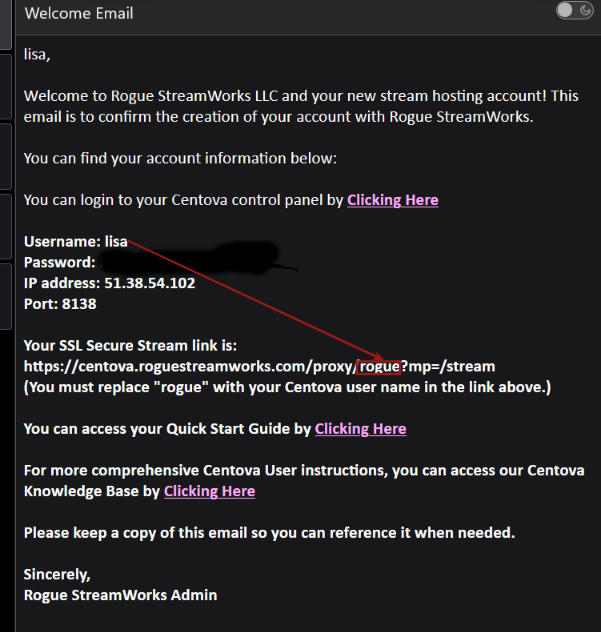
Your Rogue StreamWorks Welcome Email contains the information needed to access and configure your station.
Open your CentovaCast Control Panel.
Example: https://centova.roguestreamworks.com:2199
Enter your username and password.
Once logged in, you'll arrive at the Overview page of your control panel, where you can manage your station settings, Auto DJ, and live broadcasting connections.
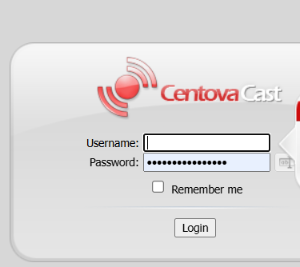
Enter the username and password provided in your Rogue StreamWorks Welcome Email.
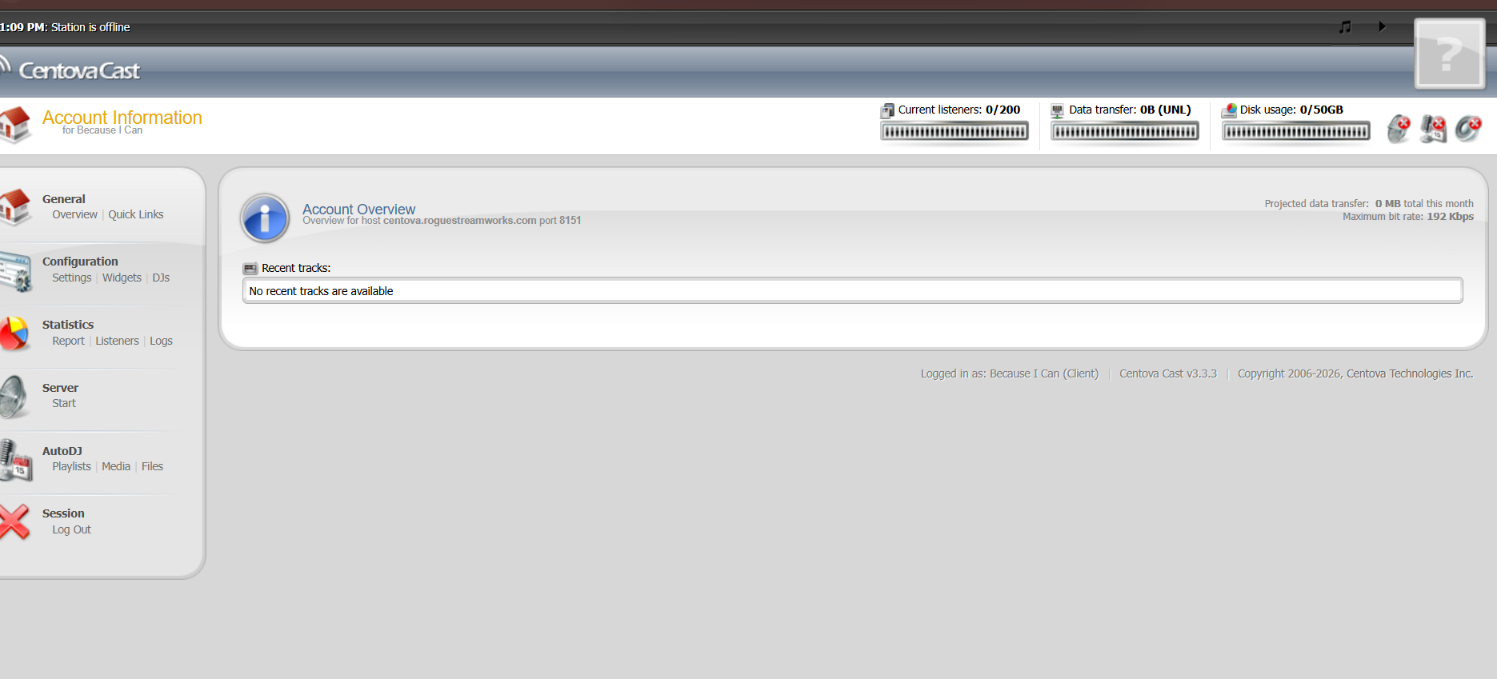
After logging in, the CentovaCast Overview page provides access to your station controls and management tools.
Click Settings and make sure you are on the Stream tab.
Complete the following fields as desired:
Click Update to save your changes.
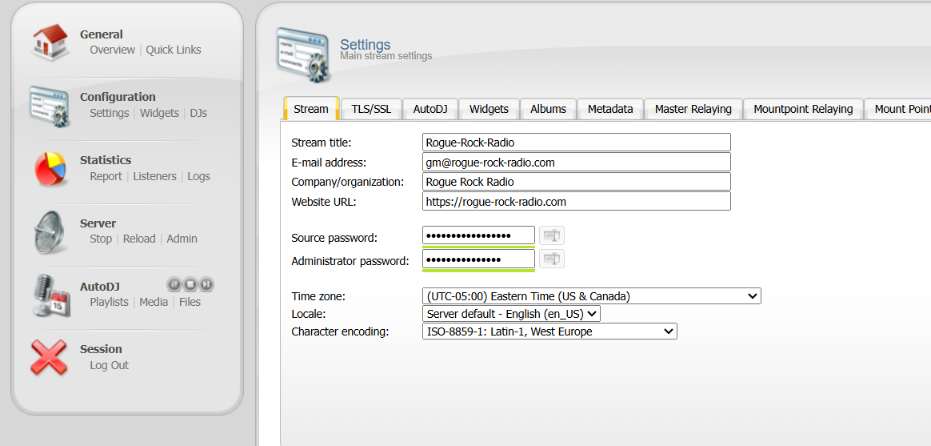
Use the Stream tab in CentovaCast Settings to configure your station information and passwords.
If your package includes Auto DJ, follow these steps to upload your music library:
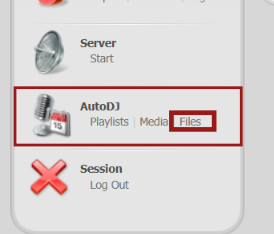
From the Overview page, click Files under the Auto DJ section.
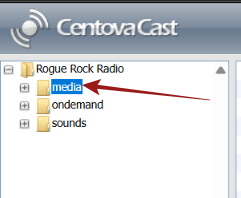
Click Media in the left panel to open your station's media storage area.
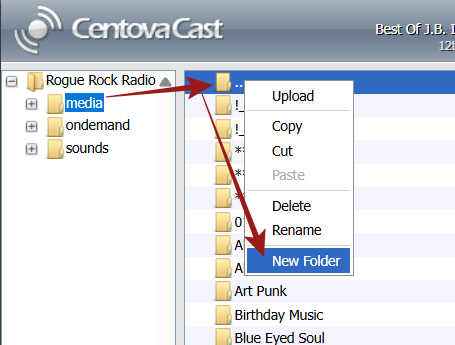
Right-click the folder icon and select the option to create a new folder for your music.
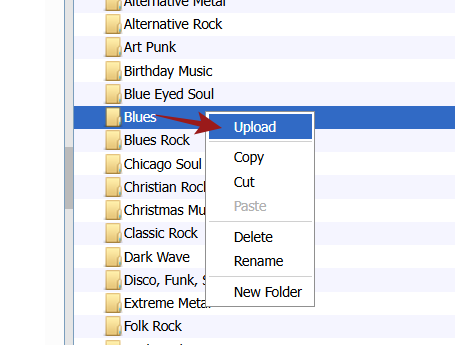
Right-click the folder icon and select Upload to begin adding music files.
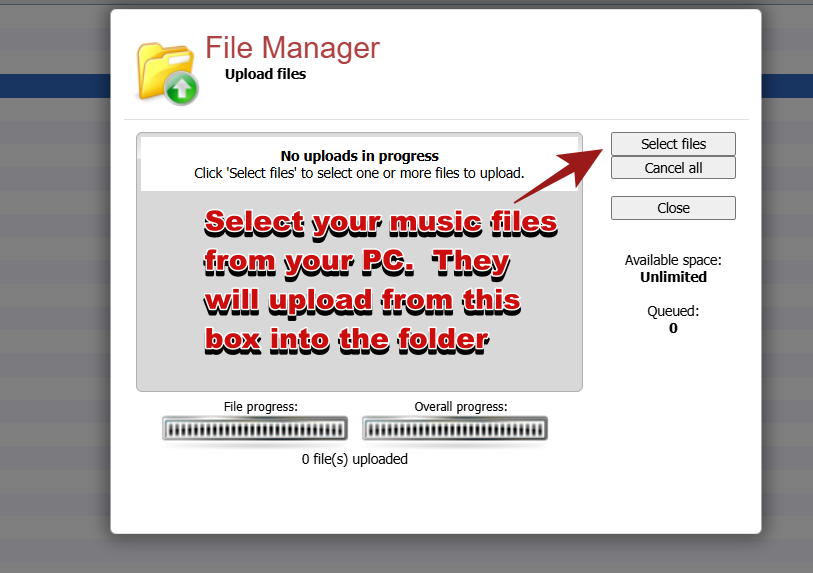
Select the music files you want to upload, then click Open to begin the upload.
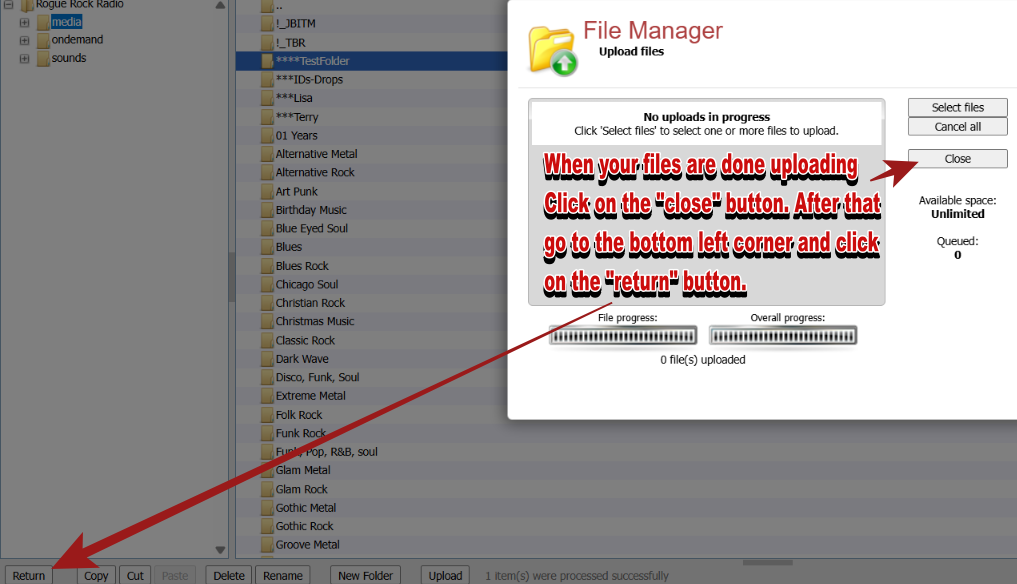
After the upload finishes, click Close, then click Return to continue.
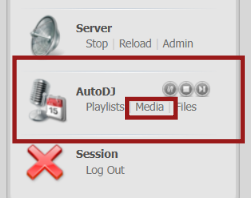
Under Auto DJ in the left menu, click Media to open the Auto DJ Media Library.
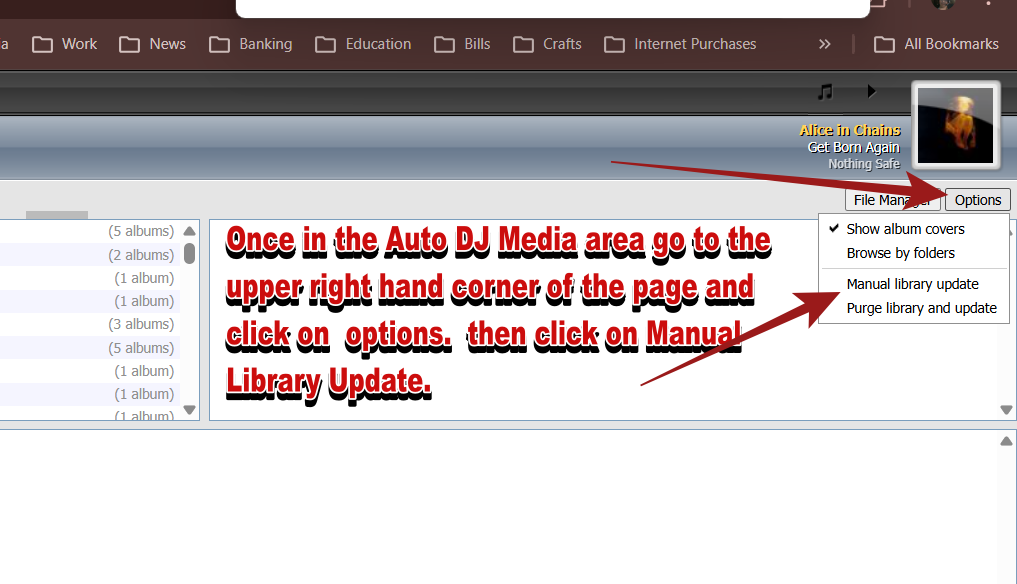
Open Options and select Manual Library Update so Auto DJ recognizes the newly uploaded music.
CentovaCast will scan your music files and add them to your Auto DJ Library database.
From the Centova Cast dashboard, locate the AutoDJ section in the left menu and click Playlists.
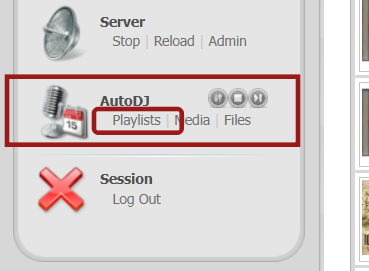
Under AutoDJ, click Playlists to open Playlist Management.
Your Centova Cast account may already include several preconfigured playlists. You do not have to create a new playlist to get AutoDJ running.
For the quickest setup, choose an existing enabled General Rotation playlist. The playlists available in your account may differ from those shown in this example. Playlists that are not enabled will be shown as disabled.
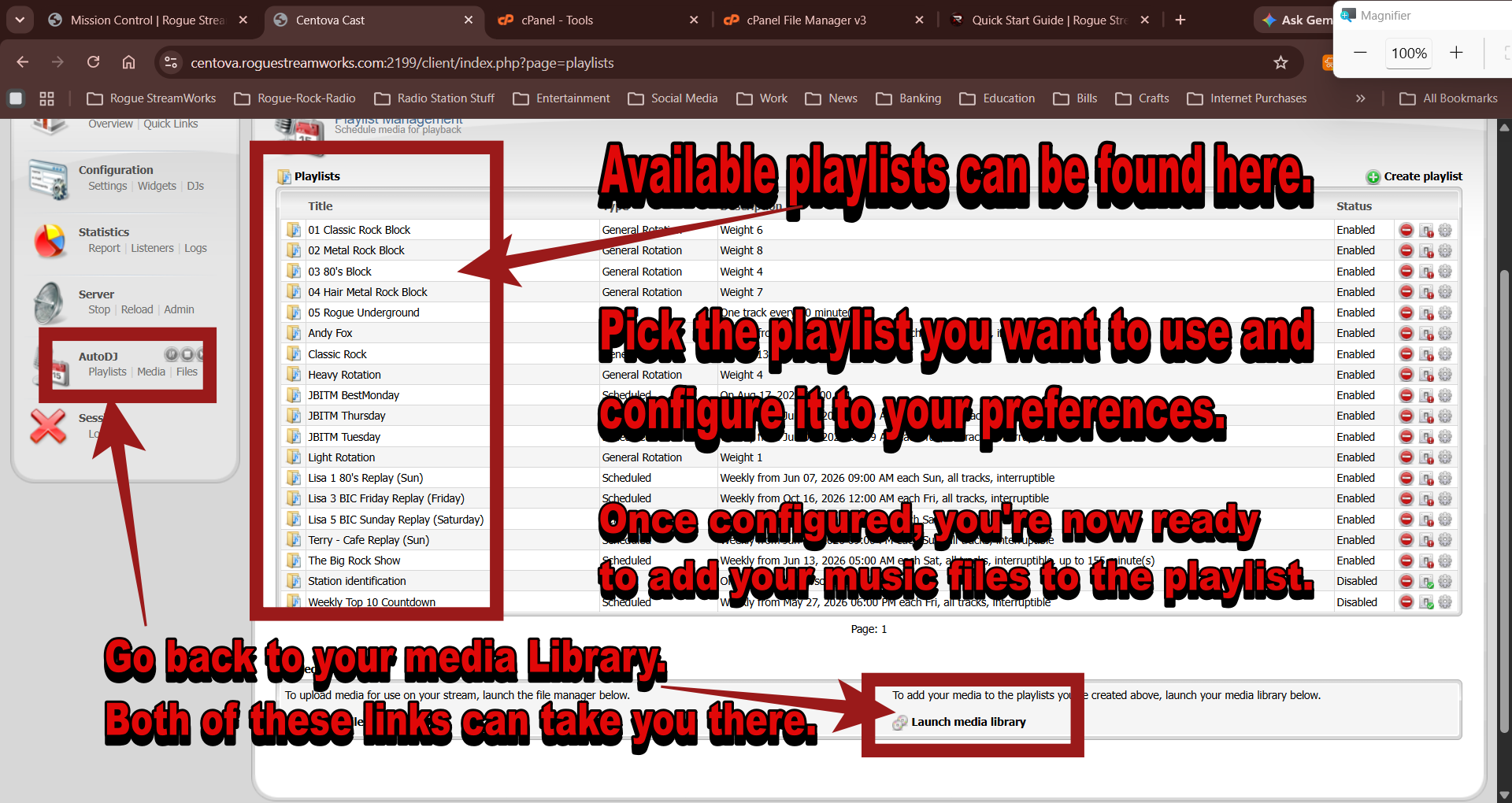
Review your available playlists, then open the Media Library using either AutoDJ → Media or the Launch media library shortcut. Both take you to the same place.
In the Media Library, select one or more artists, then drag the highlighted artist selection onto the playlist you want to use in the left panel.
When you add an artist this way, Centova adds all Media Library tracks for that artist to the selected playlist. This is the fastest way to load a large amount of music.
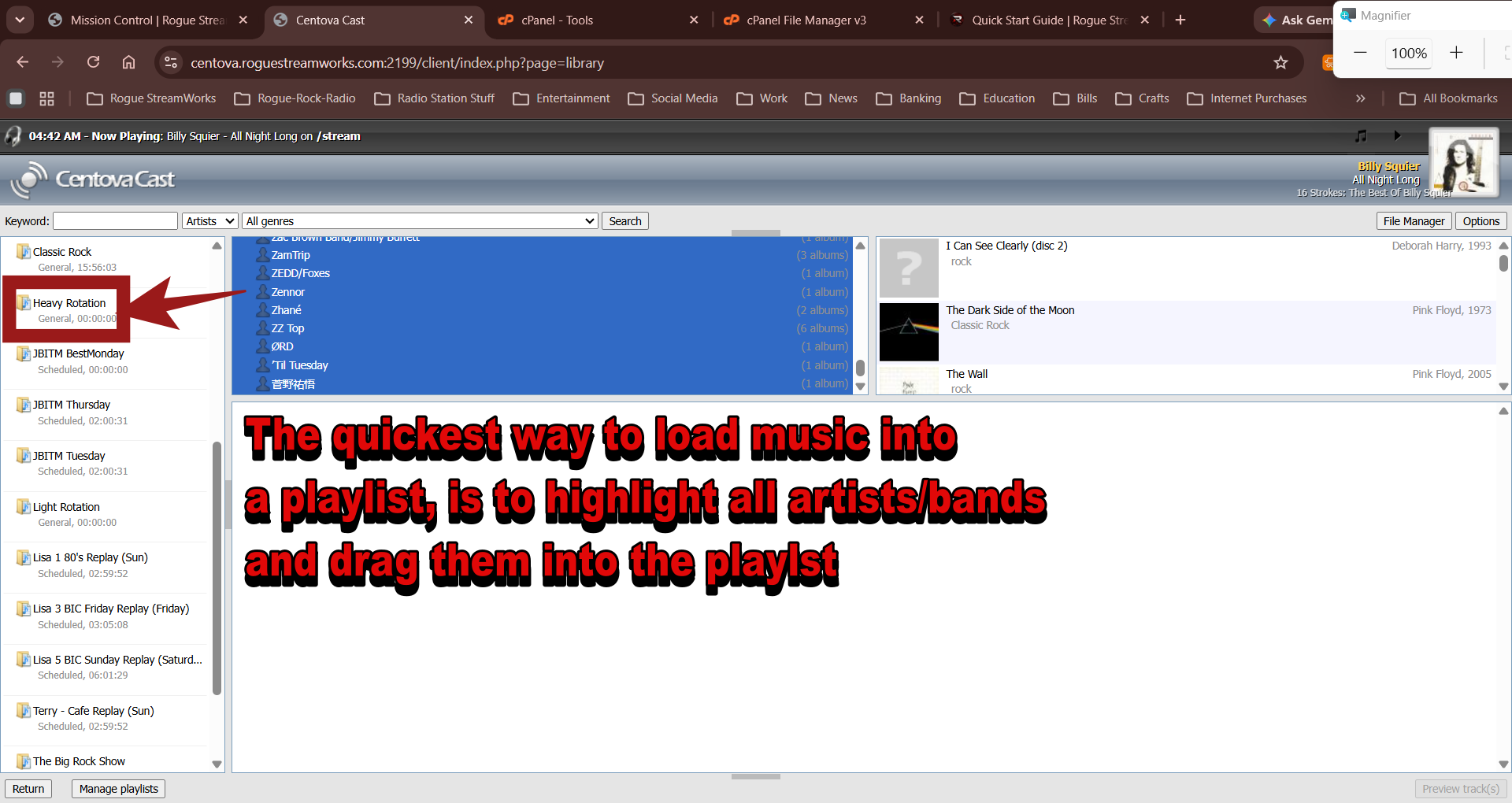
Select one or more artists and drag the selection onto your chosen playlist.
If you want more control over exactly which tracks are added, click Options → Browse by folders.
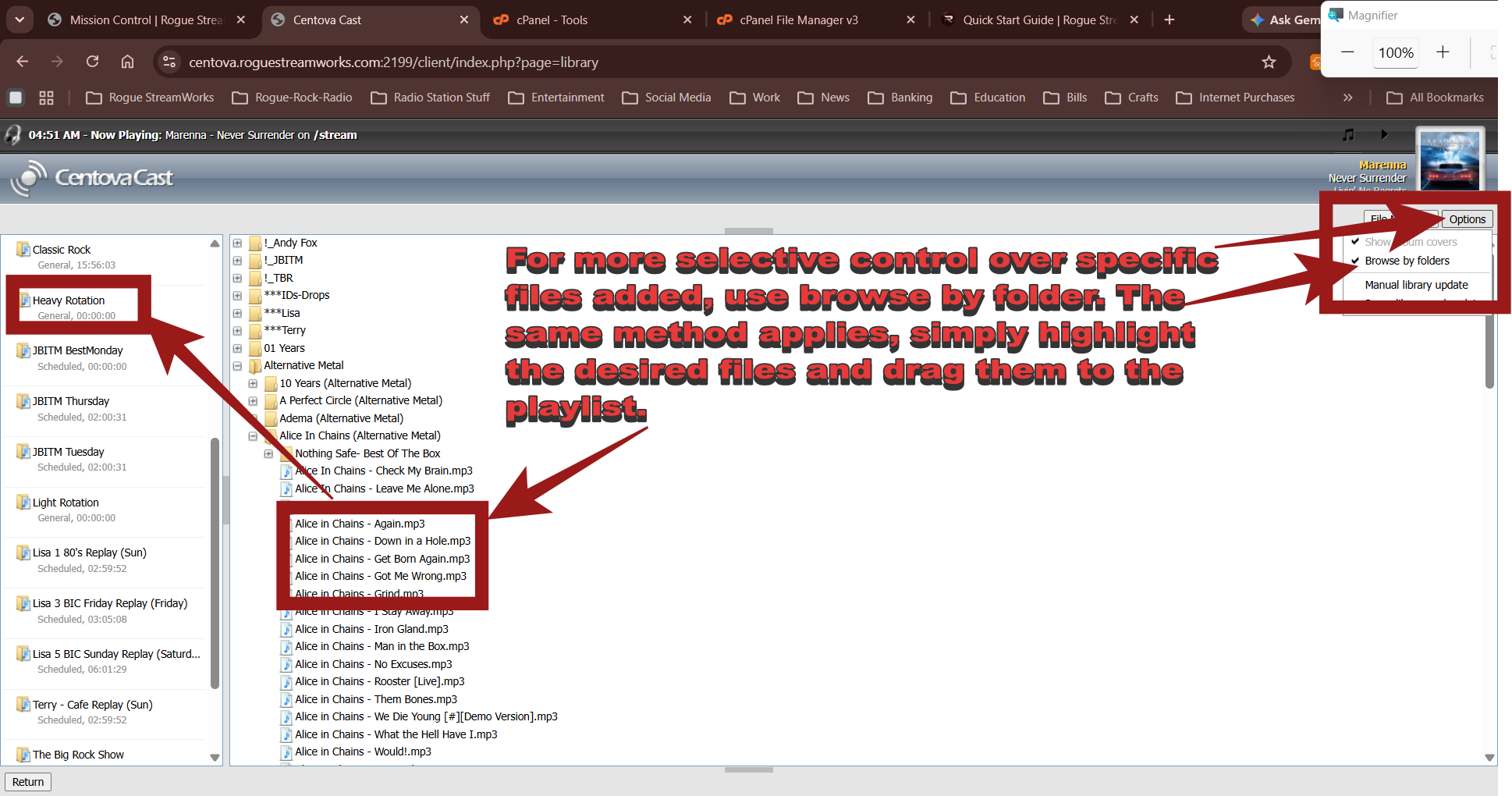
Choose Browse by folders when you want to select music more precisely.
Your folders will reflect however you organized your music when it was uploaded. For example, you may organize files by genre, artist, album, or another folder structure.
Open the folder first. Then highlight the individual tracks you want and drag those selected tracks onto your chosen playlist. Do not drag the folder itself.
Once all four are complete, you're ready to start your server.
You can also create your own playlist from the Playlist Management page by clicking Create playlist. This is optional for your initial setup; using an existing enabled General Rotation playlist is the quickest way to get AutoDJ running.
Return to the Overview page.
Under the Server section, click Start.
If AutoDJ is enabled and has music available in an enabled playlist, your station should begin broadcasting.
You'll know your station is online when song information and album artwork begin appearing in the Overview panel.
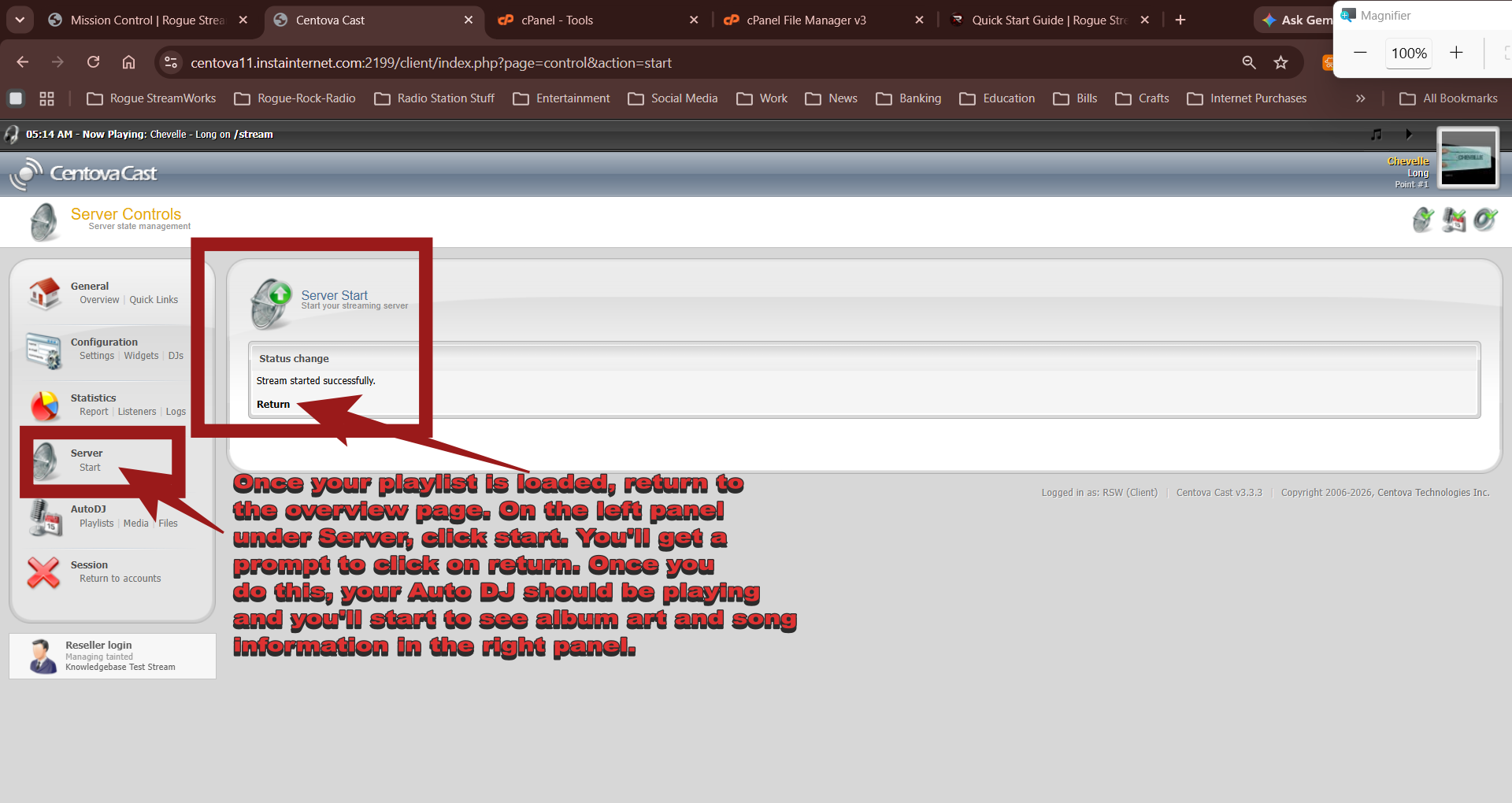
From the CentovaCast Overview page, use the Server controls to start your station.
Before configuring your live broadcasting software, create a DJ account in CentovaCast.
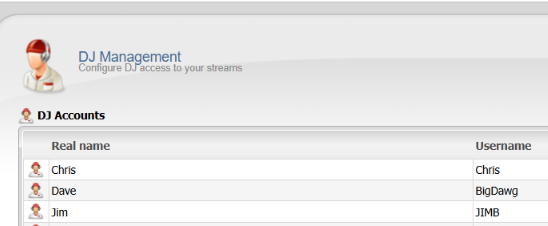
Open DJ Accounts from the CentovaCast menu to begin creating your live broadcasting account.
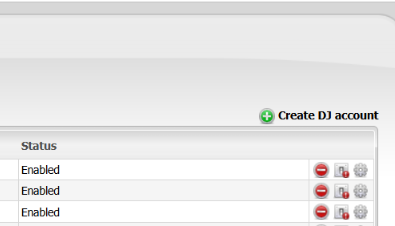
From the DJ Accounts page, click Create DJ Account to begin setting up the new account.
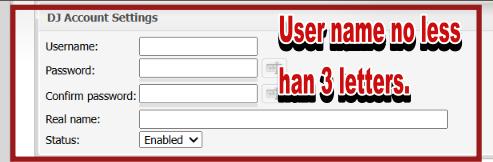
Enter the username and password the DJ will use when connecting to the station.
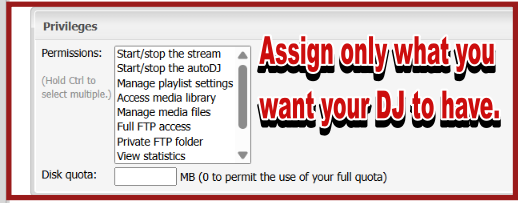
Review and configure the available settings for the DJ account.
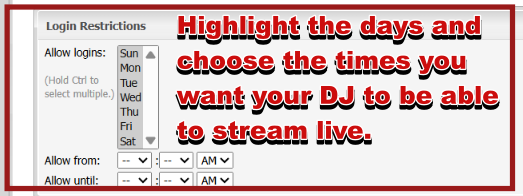
Review the remaining DJ account options and configure them for the DJ's broadcasting needs.

Finish reviewing the DJ account settings before completing the account setup.
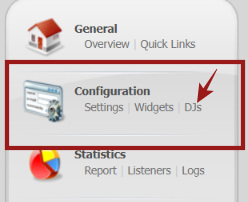
Review the DJ account configuration before using the account for live broadcasting.
If you plan to broadcast live, you'll need encoder software.
Popular options include:
From the Overview page:
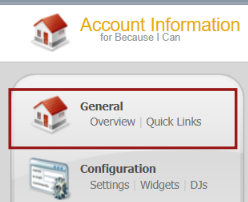
From the CentovaCast Overview page, click Quick Links to access your station connection information.
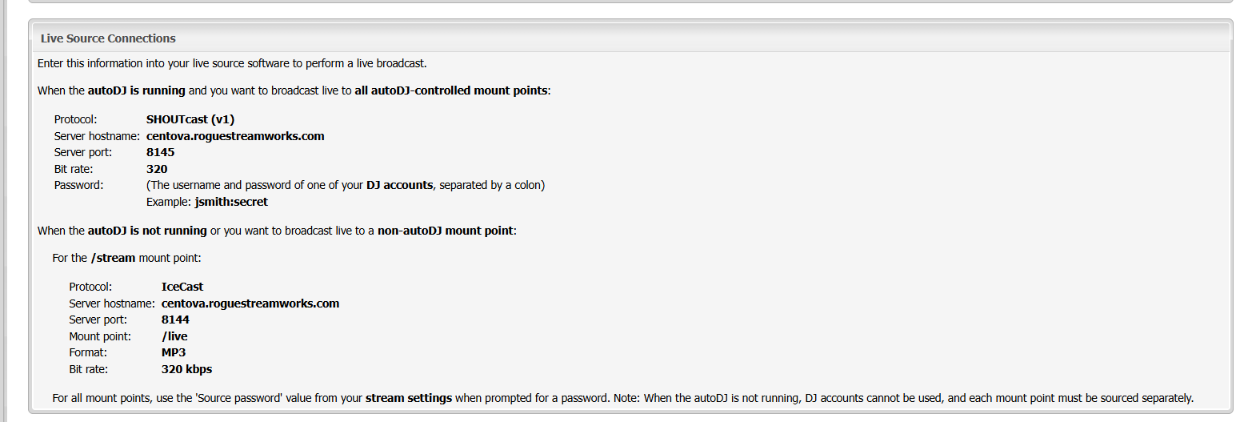
Scroll down the Quick Links page until you reach the Live Source Connections section.
Locate the following information:
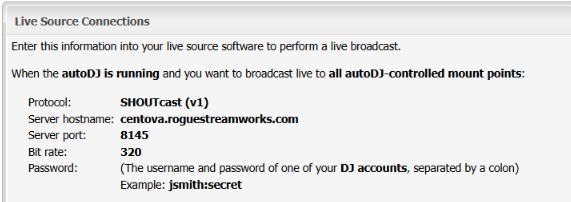
The Live Source Connections section provides the connection information needed to configure your broadcasting software.
Enter these settings into your preferred broadcasting software.

Use the appropriate Live Source Connection settings when configuring your preferred broadcasting software.
username:password
Open your stream URL in a web browser and verify the following:
If everything is working properly, your station is officially online.
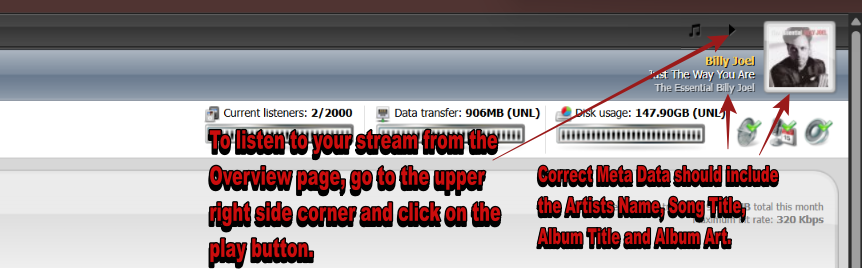
Check your station stream to confirm that it is online and broadcasting correctly.
If you ordered a custom station player, we'll need a few items from you before we can build your player:
Once we receive your selections and station logo, Rogue StreamWorks will configure your custom player and provide you with your dedicated player page.
If you'd like to display the player directly on your own website, we'll also provide the embed instructions you need to add it to your site.
Need help or have questions? We offer several support resources:
Priority Support is available for Pro and Ultimate package customers and provides expedited assistance during our normal support hours.
Please note that Priority Support does not guarantee 24/7 live assistance.
| Day | Live Support Availability |
|---|---|
| Monday – Friday | 8:00 AM – 5:00 PM EDT |
| Saturday | 9:00 AM – 5:00 PM EDT |
| Sunday | Ticket support only |
Support tickets submitted outside business hours will be addressed as quickly as possible.
At Rogue StreamWorks, we understand that not everyone is a technical expert — and that's perfectly okay.
If you get stuck, contact us and we'll be happy to walk you through the process.
Music Is Our Mission!